
A website for 60ct
- Michiel Ootjers
- Technology
- April 15, 2024
How I’ve build a fully scalable, high traffic website for only 60ct a month using AWS cloud using IaC.
Every once in a while you will encounter this certain task: building and deploying a website. For yourself, your company or your loved ones. You probably did it before using shared webhosting or a dedicated server. You modified a heavy Wordpress or Drupal site, wrote some custom made PHP and JavaScript, made sure you put in a proper template et voila.
Best case scenario, you kept it up to date. Worst case scenario, the website was “final”, you left it alone only to see 3 missed calls on your holiday phone with a voicemail telling you the website turned dark and someone was running a DivX station on your hosting package because you stopped updating Wordpress. Or you are working day and night because the absolute worst is happening: your company and website are a success, and you are trying to keep up by adding more and more servers because there are limits on running a dynamic website.
Don’t worry, we have all been there. Luckily for us engineers, some companies like buzz words and you persuaded your Web Designer to run on a JAM-stack, or what we nerds like to call: a static site generator. No more dynamic generated content (which person got it into his head to generate a website for every new visitor), faster site access and less attack vectors from the dark side.
Let me show you how I did this by demonstrating how my website works. For the sake of simplicity, I took some shortcuts by downloading a standard theme for our generator. So this is not about how to make a website using HTML or CSS, but how to deploy one to AWS using IaC.
And the best part is. All these components add up to a staggering 60ct per month on your AWS bill. Yes, you are hearing this correct: a scalable, worldwide available website backed by a CDN for under a dollar (or euro). Of course, this is the case for my not-so-high-traffic-blog, because cloud is all about “pay-per-use”, so don’t come complaining when your business becomes a success ;). But with an average amount of visitors, this bill is your starting point.
We will learn the following:
- Setting up Hugo with a popular theme
- Using Docker for development and generating static pages
- Setup a CI/CD pipeline using Gitlab to build and deploy your website
- Creating a Terraform/OpenTofu module
- Setting up AWS S3, Route53, Cloudfront and SSL certificates using IaC
Prerequisites
For this tutorial you will need to have the following software available in your development environment.
- git
- terragrunt and terraform or opentofu. (I use opentofu myself, but both will work)
- aws-cli
This tutorial assumes basic knowledge of Git, AWS and some feeling with working with open source tooling.
Our setup
In this tutorial you will learn to make a terraform module. But if you already worked with terraform, you know you could just use existing ones. And that is fine of course, so…when should we use a module? Well. At first, you should make a module when you intend to use this piece of work multiple times. For instance, when you would like to create multiple websites. It prevents you from creating a lot of duplicated code for doing the same thing. Let’s assume you are an agency in charge of hosting the websites of your customers. Now, let’s write down what our module should accomplish:
We want to create a website which should include every infrastructure to make this happen
This includes:
- A DNS zone for our domain name
- A SSL Certificate for our domainname for a secure connection
- A S3 bucket to store our website
- A CDN to make sure every person in the world retrieves a cached version
If we sum this all up, we could define this (from an abstract perspective) as a “scalable website”. Or “secure scalable website”, but I would suggest that a SSL certificate is a minimum requirement for a website these days.
So, from this perspective, we could build a module with a list of input variables to make this happen, for instance:
  create_zone = true
  zone = "eendomein.nl"
  domain = "eendomein.nl"
  bucket = "eendomein.nl"
We add some flexibility for domains already moved into AWS by defining if this
module should use an existing zone, or a new one. And of course, we could have
just added a second variable called domain. But by defining a variable for a
bucket and a domain for the website we allow people with slightly different
use cases to use this module. And yeah, the boundary for how much flexibility is
always tough to decide.
OK. Now that we have an idea for our module, let’s call it scalable-website,
it’s time to build our website. So we actually have something to deploy.
Preparing Hugo and Docker
We start our journey by getting Hugo to work on our workstation. Hugo is a static site generator build in GO, and has a a lot of available themes to use. You will edit the content using Markdown, and Hugo will make sure it looks lovely. We will use a standard theme called Hugoplate, so to keep it simple, I suggest you go straight to the theme gallery on Hugo and look into it. Unfortunatly, not every theme works perfectly. And every theme has their own preferred way of setting it up. For the sake of this tutorial, let’s choose Hugoplate and clone their example repository into a directory of your choosing (for the sake of this post, I will use eendomein.nl, which translates to “a domain” in English)
git clone https://github.com/zeon-studio/hugoplate.git www.eendomein.nl
Let’s start by starting up our development docker container. You may have found
out that our friends already helped by creating a .devcontainer directory,
you can use that one, or create a simple one yourself:
I assume you have already Docker running, but if you are not, now is a good time to install it. Let’s make a proper development environment by creating a Dockerfile containing “Hugo Extended”, which is essentially Hugo with a lot of plugins, and some lines to prepare our theme.
Edit the file Dockerfile in our newly created folder www.eendomein.nl.
Dockerfile
FROM hugomods/hugo:latest

COPY . /src/
Let’s make sure we can use this Dockerfile and launch our new Hugo website using docker-compose by defining a new docker-compose file.
docker-compose.yaml
version: "3"

services:
  hugo:
    build: ./
    ports:
      - 1313:1313
      - 5173:5173
    volumes:
      - ./:/src
    command: npm run dev
We mount our source to the /src directory within our docker container, and
make sure our website is reachable on port 1313. According to our theme
documentation, we should run npm run dev from within the container.
To make sure we can reach our docker container, lets make sure hugo will not
bind to localhost by editing package.json and add --bind=0.0.0.0 at the
end of our dev script.
package.json
{
  "name": "hugoplate",
  [...]
  "scripts": {
    "dev": "hugo server --bind=0.0.0.0",
Finally, our last step. Make sure hugoplate is initialized and installed in our docker container, by doing one final step.
docker-compose run hugo /bin/sh
npm run project-setup
npm install
Now that we initialized our Hugo website, let’s dive into this Hugo package and create a fresh git repository (removing all previous history), and push it into gitlab. Make sure you create a “blank project” with a README, so we push our code safely.
Initial push
cd www.eendomein.nl
rm -Rf .git
# Remove unnecessary files
rm -Rf amplify.yml netlify.toml vercel-build.sh vercel.json .devcontainer
git init
git branch -M main
git add .
git commit -m 'Initial commit'
git remote add origin gitlab.com/johndoe/our-example-com
git push -f origin main
If you get an error stating your push is remote rejected, this is most likely
because you are not allowed to force push. Within Gitlab, goto Settings > Repository > Protected Branches and switch on Allowed to force push for just
a moment. Make sure you turn it off after you retried git push -f origin main.
Well, after all these boilerplate. Let’s see if we can get something on the screen, time to run our website!
docker-compose up
[+] Running 1/0
 ✔ Container wwweendomeinnl-hugo-1  Recreated                                                                                                0.0s
Attaching to wwweendomeinnl-hugo-1
wwweendomeinnl-hugo-1  |
wwweendomeinnl-hugo-1  | > hugoplate@1.13.4 dev
wwweendomeinnl-hugo-1  | > hugo server --bind=0.0.0.0
wwweendomeinnl-hugo-1  |
[...]
wwweendomeinnl-hugo-1  | Web Server is available at //localhost:1313/ (bind address 0.0.0.0)
wwweendomeinnl-hugo-1  | Press Ctrl+C to stop
Congratulations: you now have a working development environment in which you
can make changes to your website. See the directory content for a quick start
and read the README for information how to alter the theme (colors, logo, etc).
Infrastructure
Before we can continue, let’s make sure our infrastructure is ready for use. We will use terragrunt to setup our infrastructure. I have chosen for this “extension”, because I feel this is just your start and after this tutorial you will extend your infrastructure to a point you will thank me for using terragrunt directly ;)
But before we can dive into Terraform/Terragrunt, it is necessary to create a AWS account so we can configure our AWS resources using Terraform from within a Gitlab pipeline. I myself have chosen for a “consolidated billing” approach within AWS. A setup in which I created one master account which manages the billing for the different accounts below. For instance:
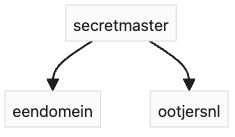
This way I can create every tutorial I want, without breaking my main website when I make a mistake. How to create a multi-organization is beyond the scope of this post, but please see the following instructions on how to set it up:
Let’s assume you created a memberaccount called eendomein, which we will use to login to the AWS console. From where we will create a user called gitops, with the following permissions:
- CloudFrontFullAccess
- AmazonS3FullAccess
- AmazonRoute53FullAccess
- AWSCertificateManagerFullAccess
These will be enough to setup a S3 bucket, and make sure we can setup a cloudfront distribution which allows everyone to access our website
Setup our repository
Create your own (empty) git repository on gitlab, so we can use that to create our infrastructure
(e.g. https://gitlab.com/eendomein/eendomeininfra)
Now, let’s create the following directories within our repository. (replace eendomain to something suitable)
.
└── prod
    ├── eu-north-1
    │   └── eendomeinnl
    │       ├── cf-eendomein
    │       ├── r53-eendomein
    │       ├── r53-eendomein-records
    │       └── s3-eendomein-www
    └── us-east-1
        └── acm-eendomein-nl
In this setup, we will create one environment using terragrunt called prod. You can extend this repository with, for instance, a staging environment. We will also divide our resources in different region-directories, to make sure you are able to create resources in multiple regions.
git clone git@gitlab.com:your_namespace/and_infra_repository.git eendomein-infra
cd eendomein-infra
mkdir -p terraform/prod/eu-north-1/eendomeinnl/{r53-eendomein,r53-eendomein-records,s3-eendomein-www,cf-eendomein}
mkdir -p terraform/prod/us-east-1/acm-eendomein-nl
Now that we have setup a structure for our infrastructure, let’s start by making a simple terragrunt setup by creating the file terraform/prod/terragrunt.hcl with the following contents
terragrunt.hcl
# This section configures our tf state file, so terraform/tofu knows
# which and how infrastructure is setup
remote_state {
  backend = "s3"
  config = {
    bucket  = "eendomein-terraform"
    key     = "terragrunted/${path_relative_to_include()}.tfstate"
    region  = "eu-north-1"
    encrypt = true
  }
}

# Setup variables for tofu/terraform
terraform {
  extra_arguments "common_vars" {
    commands = get_terraform_commands_that_need_vars()
    optional_var_files = [
      find_in_parent_folders("regional.tfvars"),
    ]
  }
}

# Generate a providers.tf containing our AWS region according
# to the variables set in above "regional.tfvars"
generate "providers" {
  path      = "providers.tf"
  if_exists = "overwrite"
  contents  = <<EOF
provider "aws" {
  region = var.aws_region
}
variable "aws_region" {
  description = "AWS region to create infrastructure in"
  type        = string
}
terraform {
  backend "s3" {
  }
}
EOF
}
For the second part, make sure terragrunt understands our regions:
echo 'aws_region = "eu-north-1"' > terraform/prod/eu-north-1/regional.tfvars
echo 'aws_region = "us-east-1"' > terraform/prod/us-east-1/regional.tfvars
Make sure authentication to AWS works: let’s make sure terraform/opentofu can access AWS by making your Access Key and Secret Key available. For this tutorial will use my credentials file in my home directory: .aws/credentials
$ mkdir ~/.aws
$ vim ~/.aws/credentials

[default]
aws_access_key_id = YOURACCESSKEY
aws_secret_access_key = YOURSECRETKEY

$
That’s it. We are now set to create our first terraform recipe!
Setup a configuration file for our website
Let’s keep our code DRY, and make sure our configuration resides in a single file called common_vars.yaml:
terraform/common_vars.yaml
gitops_arn: arn:aws:iam::123456789012:user/gitops
aws_account_id: 8765432101234
www:
  bucket: "eendomein.nl"
  domain: "eendomein.nl"
  aliases:
    - eendomein.nl
In the file above we defined our bucket and domain, and also make sure we can use our gitops infra user identifier (arn) in policy files
Put Hugo in a bucket (S3)
We would like to deploy our website in a S3 bucket from our website repository. For this, we will need to deploy a S3 bucket to AWS with a policy which allows everyone read access to this bucket.
Let’s start by creating a policy file, containing our access restrictions:
terraform/prod/eu-north-1/eendomeinnl/s3-eendomein-www/s3-access-policy.tpl
{
    "Version": "2012-10-17",
    "Statement": [
        {
            "Sid": "GitopsAccess",
            "Effect": "Allow",
            "Principal": {
                "AWS": "${gitops_arn}"
            },
            "Action": "s3:*",
            "Resource": [
                "arn:aws:s3:::${bucket}",
                "arn:aws:s3:::${bucket}/*"
            ]
        },
        {
            "Sid": "PublicReadGetObject",
            "Effect": "Allow",
            "Principal": "*",
            "Action": [
                "s3:GetObject"
            ],
            "Resource": [
                "arn:aws:s3:::${bucket}/*"
            ]
        }
    ]
}
And now the fun part: let’s create our first terragrunt configuration file which will deploy our bucket to AWS:
terraform/prod/eu-north-1/eendomeinnl/s3-eendomein-www/terragrunt.hcl
# Merges any parent terragrunt.hcl files into this one
include "root" {
  path = find_in_parent_folders()
}

# Merges variables found in any common_vars.yaml in a parent directory into
# local
locals {
  common_vars = yamldecode(file(find_in_parent_folders("common_vars.yaml")))
}

# Defines the terraform module to use
terraform {
  source = "tfr:///terraform-aws-modules/s3-bucket/aws?version=4.1.1"
}

inputs = {
  bucket = local.common_vars.www.bucket
  tags = {
    Owner = "eendomeinnl-www"
  }
  # Make sure we allow public access to this bucket
  block_public_acls       = false
  block_public_policy     = false
  ignore_public_acls      = false
  restrict_public_buckets = false

  website = {
    index_document = "index.html"
  }

  # Define who is allowed to access this bucket
  attach_policy = true
  policy = templatefile("s3-access-policy.tpl", { gitops_arn = local.common_vars.gitops_arn, bucket = local.common_vars.www.bucket  })
}
As you can see here, we will create a public bucket with a policy from our previous policy-template. There are more ways to create a policy, but I like to use plain JSON templates for readability and I think it is easier to maintain.
We are now able to create this bucket, so let’s test our IaC before we head to the next chapter:
cd terraform/prod/eu-north-1/eendomeinnl/s3-eendomein-www
terragrunt plan
If you have followed this tutorial (and I didn’t make a mistake :P), you will see a list of changes terraform/opentofu wants to deploy to AWS. If you would like to take it for a spin, you are free to apply these changes to AWS by running the apply command:
terragrunt apply
Create a DNS zone for our domain (Route53)
Without a domain, no website. So let’s use the power of Route53 (DNS) to prepare a zone in which we can define our website. In this tutorial I assume you already have a domain name in mind, so we will only use the DNS functionality of Route53. This means that you will have to set the nameservers for your chosen domain towards AWS. Which you will be able to do after deploying this zone (it will tell you their nameservers).
Let’s start by creating a zone for eendomein.nl
terraform/prod/eu-north-1/eendomeinnl/r53-eendomein/terragrunt.hcl
include {
  path = find_in_parent_folders()
}

# Prevents destroying of this infrastructure
prevent_destroy = true

locals {
  common_vars = yamldecode(file(find_in_parent_folders("common_vars.yaml")))
}

terraform {
  source = "tfr:///terraform-aws-modules/route53/aws//modules/zones?version=2.11.1"
}


inputs = {
  create = true
  zones = {
    "${local.common_vars.www.domain}" = {
      comment = "${local.common_vars.www.domain} domain"
      tags = {
        ManagedBy = "Gitops"
      }
    }
  }

  tags = {
    ManagedBy = "Gitops"
  }
}
Let’s deploy this zone, so we have our domain running, and we can point the nameservers for our domain to this zone and let it propagate while we continue this tutorial.
cd terraform/prod/eu-north-1/eendomeinnl/r53-eendomein/terragrunt.hcl
terragrunt plan && terragrunt apply
If everything works well, you will see your nameservers in the output. For example:
route53_zone_name_servers = {
  "eendomein.nl" = tolist([
    "ns-1477.awsdns-56.org",
    "ns-1953.awsdns-52.co.uk",
    "ns-498.awsdns-62.com",
    "ns-531.awsdns-02.net",
  ])
}
Make sure we can securely reach our website (SSL)
No proper website without a secure HTTPS environment. Let’s create our certificate by using the AWS Private Certificate Authority, which is a Let’s Encrypt like service within AWS to generate secure certificates for your domain.
terraform/prod/us-east-1/acm-eendomein-nl/terragrunt.hcl
include "root" {
  path = find_in_parent_folders()
}

locals {
  common_vars = yamldecode(file(find_in_parent_folders("common_vars.yaml")))
}

terraform {
  source = "tfr:///terraform-aws-modules/acm/aws?version=5.0.1"
}

# We depend on our eendomein.nl zone, to create verification records for this certificate
dependency "route53-eendomein-zone" {
  config_path = "../../eu-north-1/eendomeinnl/r53-eendomein"
  mock_outputs = {
    route53_zone_zone_id = {
      "${local.common_vars.www.domain}" = "zone-id-34234234"
    }
  }
}

inputs = {
  domain_name  = local.common_vars.www.domain
  zone_id      = dependency.route53-eendomein-zone.outputs.route53_zone_zone_id[local.common_vars.www.domain]

  # Create a certificate for our main domain name and these aliases:
  subject_alternative_names = local.common_vars.www.aliases

  # Install validation using DNS records for this certificate
  validation_method = "DNS"
  wait_for_validation = true

  tags = {
    ManagedBy = "Gitops"
  }
}
Add some overkill in the mix (Cloudfront)
Well, for our personal site this might be a little overkill. But, remember, we are still paying less then your average shared webhosting supplier, so let’s add Cloudfront in the mix. With this CDN our website is cached and reachable around the world.
terraform/prod/eu-north-1/eendomeinnl/cf-eendomein/terragrunt.hcl
include "root" {
  path = find_in_parent_folders()
}

locals {
  common_vars = yamldecode(file(find_in_parent_folders("common_vars.yaml")))
}

terraform {
  source = "tfr:///terraform-aws-modules/cloudfront/aws?version=3.4.0"
}

# We depend on a valid certificate for this domain
dependency "acm-eendomein-nl" {
  config_path = "../../../us-east-1/acm-eendomein-nl"
  mock_outputs = {
    acm_certificate_arn = "arn:aws:acm:eu-north-1:444455556666:certificate/bogus_dummy_id"
  }
}

# We need to point cloudfront to our S3 website bucket:
dependency "s3-eendomein-www" {
  config_path = "../s3-eendomein-www"
  mock_outputs = {
    s3_bucket_website_endpoint = "eendomein.nl.s3-website.eu-north-1.amazonaws.com"
  }
}

inputs = {
  aliases = [ local.common_vars.www.domain ]

  comment             = "Cloudfront acceleration for ${local.common_vars.www.domain}"
  enable              = true

  is_ipv6_enabled     = true
  retain_on_delete    = false

  # Deploying Cloudfront takes some time. Let's not wait for the end result
  wait_for_deployment = false

  default_root_object = "index.html"

  # Our S3 origin, available through HTTP
  origin = {
    s3_blokje_in = {
      domain_name = dependency.s3-eendomein-www.outputs.s3_bucket_website_endpoint
      custom_origin_config = {
        http_port              = "80"
        https_port             = "443"
        origin_protocol_policy = "http-only"
        origin_read_timeout    = "60"
        origin_ssl_protocols   = ["TLSv1.2", "TLSv1.1", "TLSv1"]
      }
    }
  }

  # Our cache settings. Now only caching for 300 seconds. Raise it to take real advantage
  default_cache_behavior = {
    target_origin_id           = "s3_blokje_in"
    viewer_protocol_policy     = "redirect-to-https"

    allowed_methods = ["GET", "HEAD", "OPTIONS"]
    cached_methods  = ["GET", "HEAD"]
    compress        = true
    query_string    = true

    min_ttl                = 0
    default_ttl            = 300
    max_ttl                = 3600
  }

  # Install this certificate for HTTPS connections
  viewer_certificate = {
    acm_certificate_arn = dependency.acm-eendomein-nl.outputs.acm_certificate_arn
    ssl_support_method  = "sni-only"
  }
}
What a beast, isn’t it? I hope I added enough comments along the lines to explain what i’m doing. But in essence, this piece of configuration glues the whole infrastructure together. With our domain in Route53, our SSL certificate using ACM and our S3 bucket, we now have a blazing fast environment to put our HUGO into.
Create our DNS records
Last but not least, our final step for some visibility. Let’s create the DNS records pointing to our cloudfront destribution so we can deploy our website.
Let’s create our configuration for our DNS records by editing:
terraform/prod/eu-north-1/eendomeinnl/r53-eendomein-records/terragrunt.hcl
include {
  path = find_in_parent_folders()
}

locals {
  common_vars = yamldecode(file(find_in_parent_folders("common_vars.yaml")))
}

# Prevents destroying of this infrastructure
prevent_destroy = true

terraform {
  source = "tfr:///terraform-aws-modules/route53/aws//modules/records?version=2.11.1"
}

# We depend on cloudfront to set these records
dependency "cf-eendomein" {
  config_path = "../cf-eendomein"
  mock_outputs = {
    cloudfront_distribution_domain_name = "${local.common_vars.www.domain}.cloudfront.dummy"
    cloudfront_distribution_hosted_zone_id = "${local.common_vars.www.domain}-id.cloudfront.dummy"
  }
}

inputs = {
  zone_name = local.common_vars.www.domain

  tags = {
    ManagedBy = "Gitops"
  }

  records = [
    {
      name = ""
      type = "A"
      alias = {
        name = dependency.cf-eendomein.outputs.cloudfront_distribution_domain_name
        zone_id = dependency.cf-eendomein.outputs.cloudfront_distribution_hosted_zone_id
      }
    },
    {
      name = "www"
      type = "A"
      alias = {
        name = dependency.cf-eendomein.outputs.cloudfront_distribution_domain_name
        zone_id = dependency.cf-eendomein.outputs.cloudfront_distribution_hosted_zone_id
      }
    }
  ]
}
Test and run our plan
Now that we have all our building blocks in place, it’s time to see how our infrastructure looks like from a terraform/opentofu perspective. We already used it to deploy some parts, but now it’s time to run everything
Let’s make sure that terragrunt is working by running terragrunt run-all plan in our prod environment by moving to the working directory: terraform/prod
cd terraform/prod
terragrunt run-all plan
If everything works smooth, you will get a lot of output telling you what changes will be deployd, and it’s time to move to the next stage…
Or as I’m like to say: Fuck It, Let’s do it:
cd terraform/prod
terragrunt run-all apply
Just say yes to the confirmation question, and let’s see if we can see our stuff being deployed from our AWS console. Login to your AWS console to see the stuff spin-up.
Gitlab pipelines
Now that our infrastructure is running, it is time to implement our gitops workflow. Let’s make sure that whenever we merge something to our main branch on gitlab, our infrastructure or website is deployed.
Infrastructure pipeline
Let’s create a .gitlab-ci.yaml file containing the information needed to deploy our infrastructure. We will use a somewhat “bulky” docker container for this so it contains every feature (opentofu, aws, terragrunt) we need to deploy our infrastructure.
image: devopsinfra/docker-terragrunt:aws-latest

stages:
  - plan
  - apply

prod:plan:
  stage: plan
  script:
    - cd terraform/prod
    - export TERRAGRUNT_TFPATH=/usr/bin/tofu
    - terragrunt run-all init -upgrade --terragrunt-non-interactive
    - terragrunt run-all plan --terragrunt-non-interactive

prod:apply:
  stage: apply
  script:
    - cd terraform/prod
    - export TERRAGRUNT_TFPATH=/usr/bin/tofu
    - terragrunt run-all init -upgrade --terragrunt-non-interactive
    - terragrunt run-all apply --terragrunt-non-interactive
  rules:
    - if: $CI_COMMIT_BRANCH == "main"
In the example above, we run a pipeline with two jobs.
- Plan
- Apply
Whenever the plan succeeds, we immediatly continue to the apply part of terragrunt. You can imagine you would like to do some linting or validation before this, so feel free to extend this workflow.
Warning
Make sure you use the same “terraform-binary” for your workstation and gitlab. In the CI configuration above, I made sure to use “opentofu”. But if you would like to use “terraform”, remove the EXPORT line from the script above.
Let’s add this gitlab-ci.yaml to our repository, and see what happens.
git add .gitlab-ci.yaml
git commit -m 'Add IaC instructions for gitlab'
Let’s go to our jobs section on gitlab.com to see what the job is outputting. But I think we can be sure that it misses our AWS credentials.
(failure image)
Let’s add our AWS credentials by creating two CI/CD Variables called AWS_ACCESS_KEY_ID and AWS_SECRET_ACCESS_KEY. Use your ~/.aws/credentials file for inspiration.
(credentials image)
Now that we have proper setup our variables, you can retry the pipeline from the “Build” section on the gitlab.com website, or trigger another run by changing something in your repository. For now, let’s just retry the job and see it succeed.
Automatic deployment of our website
As you might have seen after your initial push, our friends at zeon-studio already created a .gitlab-ci.yaml file which builds your website and create the necessary artifacts using gitlab pipelines. I even used it as an inspiration for our Dockerfile: I really love how they created such a complete package. But for our use case, we will create our own gitlab-ci and directly deploy to AWS S3 by using a native Hugo approach. That way we get immediate feedback when something goes wrong with building our site or when deploying it to AWS.
So let’s create a new .gitlab-ci.yaml file with the following contents.
.gitlab-ci.yaml (in our website repository)
stages:
  - deploy

cache:
  paths:
    - node_modules/

default:
  image: hugomods/hugo:latest
  before_script:
    - apk update
    - apk add aws-cli
    - npm install
    - npm run project-setup
    - npm run build

prod:
  stage: deploy
  script:
    - hugo deploy --target=production
  rules:
    - if: $CI_COMMIT_BRANCH == "main"
And make sure we have a “deployment target” for hugo which points to our AWS bucket, by editing hugo.toml and add a section at the end.
hugo.toml
[deployment]
[[deployment.targets]]
name = "production"
URL = "s3://eendomein.nl?region=eu-north-1"
To make sure we are allowed to deploy to our newly created S3 bucket, we need to set the same CI/CD variables as in the previous section. If you would like to define a more strict user, that’s possible by creating a new IAM user (for instance: www-deploy) and make sure the arn for this user is added to the policy document in our s3-eendomein-www infrastructure.
Let’s test our Hugo deployment by adding the changed files to git, and send it to gitlab.
git add .gitlab-ci.yaml hugo.toml
git commit -m 'Add CI/CD for our website'
git push
Wrapping it all up
That’s it. If everything works as expected, your site will now automatically be buid and fully published to your S3 bucket, which is available through our generated infrastructure. Which makes it a good time to look into Hugo, and see how you can update your content and theme by looking into the README of this team in your website repository.
I hope you liked my post, and if you would like to confirm your work with a working example, then dive into the repositories of this tutorial. You can find them here:
This is a nice starting point to deploy your website, and for most companies this will be sufficient enough. If you would like to continue experimenting, then I will soon write how you can achieve the following:
- Add secure pages to your website using Amazon Cognito
Thanks for reading!
If you are curious what I can do for your company, or you need a temporarily (contract) co worker to help you get your infrastructure working in the cloud, don’t hesitate to contact me!
Follow me on LinkedIn for future reads!